Verdin iMX95 not displaying on MIPI

Hardware:

Mallow V1.1C carrier board

Verden iMX95 Hexa 8GB

OS:

Windows 10 (version 22H2)

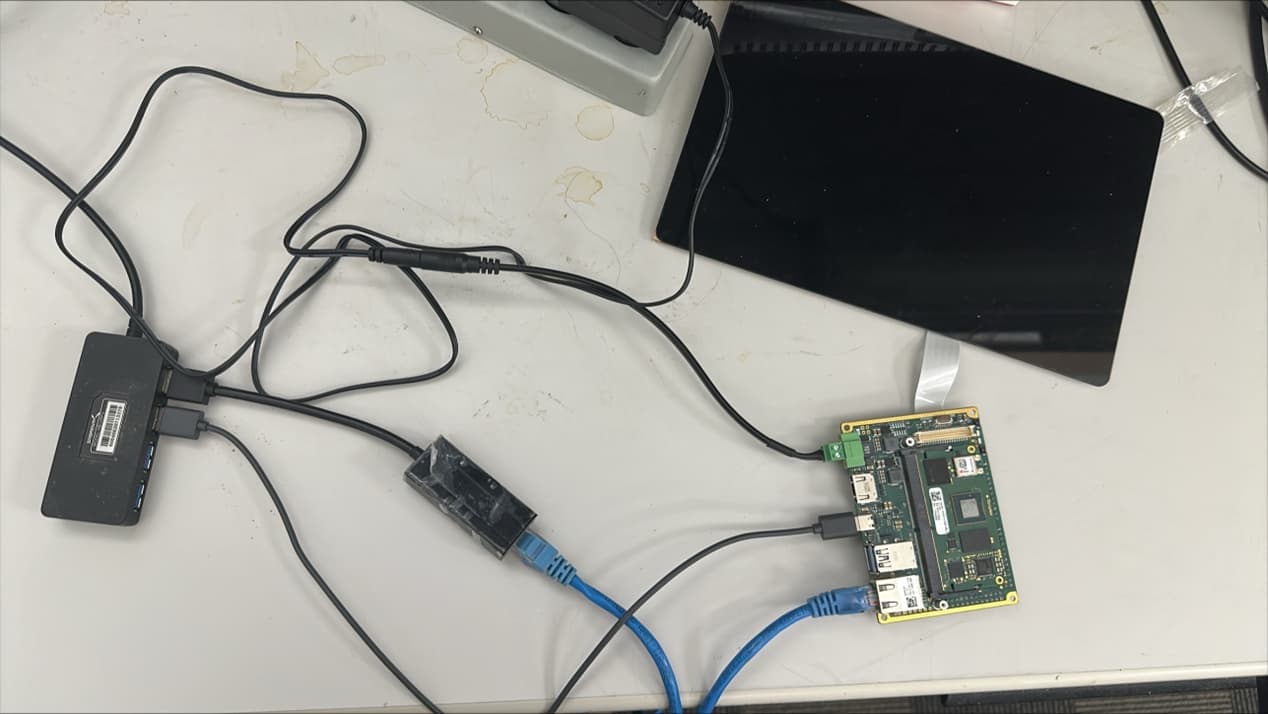
I have loaded the Toradex Embedded Linux Reference Multimedia Image on my board. But I am not getting anything displayed on my 10.1” DSI V1.1A capacitive touch display.
This is the dmesg log with respect to dsi:

[ 0.038222] /soc/bus@42000000/i2c@42540000/hdmi@48: Fixed dependency cycle(s) with /soc/dsi@4acf0000
[ 0.038514] /soc/dsi@4acf0000: Fixed dependency cycle(s) with /soc/bus@42000000/i2c@42540000/hdmi@48
[ 0.038542] /soc/dsi@4acf0000: Fixed dependency cycle(s) with /soc/syscon@4b010000/bridge@8
[ 0.038592] /soc/syscon@4b010000/bridge@8: Fixed dependency cycle(s) with /soc/dsi@4acf0000
[ 0.039011] /soc/bus@42000000/i2c@42540000/hdmi@48: Fixed dependency cycle(s) with /soc/dsi@4acf0000
[ 0.040616] /soc/bus@42000000/i2c@42540000/hdmi@48: Fixed dependency cycle(s) with /soc/dsi@4acf0000
[ 0.044973] /soc/bus@42000000/i2c@42540000/hdmi@48: Fixed dependency cycle(s) with /soc/dsi@4acf0000
[ 0.045054] /soc/dsi@4acf0000: Fixed dependency cycle(s) with /soc/bus@42000000/i2c@42540000/hdmi@48
[ 0.045077] /soc/dsi@4acf0000: Fixed dependency cycle(s) with /soc/syscon@4b010000/bridge@8
[ 0.045474] /soc/syscon@4b010000/bridge@8: Fixed dependency cycle(s) with /soc/dsi@4acf0000
[ 0.190754] /soc/dsi@4acf0000: Fixed dependency cycle(s) with /soc/syscon@4b010000/bridge@8
[ 0.190819] /soc/syscon@4b010000/bridge@8: Fixed dependency cycle(s) with /soc/dsi@4acf0000
[ 2.431388] /soc/dsi@4acf0000: Fixed dependency cycle(s) with /soc/bus@42000000/i2c@42540000/hdmi@48
[ 2.449603] /soc/bus@42000000/i2c@42540000/hdmi@48: Fixed dependency cycle(s) with /soc/dsi@4acf0000
[ 8.497061] imx95-mipi-dsi 4acf0000.dsi: Using Pixel Link0 as input source

Hi, I’m the Toradex AI Assistant.

I might make mistakes or occasionally get you wrong. Our support team will step in if needed.


I can help you troubleshoot the display issue with your 10.1" DSI capacitive touch display on the Verdin iMX95.

Hardware Connection Verification

First, ensure your display is properly connected to the Mallow Carrier Board (1). The flat ribbon cable should be connected with pin 1 of the display controller matching pin 1 of the carrier board connector (1).

Device Tree Overlay Configuration

For the Capacitive Touch Display 10.1" DSI to work properly, you need to apply the correct device tree overlay (1). The display requires pre-compiled device tree overlays that are provided by Toradex (1).

For Yocto-based BSP

On Linux BSP, Toradex provides pre-compiled, ready-to-use device tree overlays for this display (1). You can enable them by following the instructions in the Device Tree Overlays (Linux) documentation (1).

Display Status Verification

You can check if the display is properly detected by examining the system files:

cat /sys/devices/platform/display-subsystem/drm/card0/card0-LVDS-1/status
cat /sys/devices/platform/display-subsystem/drm/card0/card0-LVDS-1/enabled
cat /sys/devices/platform/display-subsystem/drm/card0/card0-LVDS-1/modes

The display should show as “connected” and “enabled” with a resolution of 1280x800 (2).

Important Note About Display Interface

The 10.1" DSI display is actually an LVDS display with a DSI interface and a DSI-to-LVDS bridge (2). This is why you might see LVDS references in the system - this is expected behavior (2).

Troubleshooting Steps

  1. Verify Hardware Connections: Double-check that the flat ribbon cable is properly seated and the blue stripes are facing up (2)

  2. Check Device Tree: Ensure the correct device tree overlay for the 10.1" DSI display is applied to your system

  3. Test Framebuffer: You can test if the display hardware is working by writing directly to the framebuffer:

    dd if=/dev/urandom of=/dev/fb0 bs=1024 count=4096
    

    This should display a random pattern on the screen (2)

  4. Review Display Logs: Check dmesg output for any display-related errors or panel detection messages

Additional Resources

For more advanced display configuration, refer to the Display Output, Resolution and Timings (Linux) article (1). For brightness adjustment, consult the Backlight (Linux) documentation (1).

The capacitive touch screen should work out-of-the-box with the BSP, and touch screen calibration information is available in the dedicated Touch Screen Calibration (Linux) documentation (1).

Best regards, Toradex AI Assistant.


Did you like my answer? :+1: :-1:

If I answered your question, please tick the “Solution” checkbox.

For follow-up questions to me, please use @ToradexAI in your post.

So just to make sure I order everything I need, do I need anything in addition to the Toradex Display Adapter?

Toradex DSI Display Adapter | Toradex Developer Center

Are there any extra cables to connect the Mallow/Verdin to the Riverdi RVT101HVDNWC00-B display?

Do you have a photo of how to connect the display adapter to the Mallow board? The display adapter has one 40 pin FFC connector and a header on it. But I can’t figure out how to connect the header to the Mallow carrier board

I think the Toradex Display Adapter fits on the Verdin Development board:

Verdin Development Board | Toradex Developer Center

But I don’t see a similar connector on the Mallow Carrier board.

How do I connect the Riverdi Riverdi RVT101HVDNWC00-B display to the Mallow carrier board with Verdin SOM?

Yes we do.
The requested photo can be found in the article I referenced.

You do not need the Toradex Display Adapter to connect your display to the Mallow board. However, you must apply the relevant overlay to enable the display. This is also described in the article.

Hi Robert,

Did you get a display out on the Mallow?

Best,

Michael Park
Toradex