Use two displays on Apalis + Ixora

Hi all,

I’m working with this configuration:

Apalis iMX8QM V1.1E

Carrier board Ixora V1.2A

My BSP is a bit old since it is 5.7 (with Yocto).

I need to drive two different display at the same moment (more specifically I need to run two different Cranksoftware application, one on LVDS and the other on HDMI).

I’m encountering some trouble since everytime I turn on the machine, if HDMI is connected, HDMI take the priority and my Crank application splash on HDMI;

When the HDMI is disconnected, I turn on the machine and the app splash on LVDS.

How can I manage the two display at the same time?
I mean, regardless of Cranksoftware (which is a secondary issue that I don’t think depends on Toradex), how can I define which is the main display? Or, in any case, how can I launch an application and make sure it launches on one display rather than the other?

Thanks,

Hi, I’m the Toradex AI Assistant.

I might make mistakes. Our support team will step in if needed. If I answered your question, please tick the “Solution” checkbox. For follow-up questions to me, please use @ToradexAI in your post.

Did you like my answer? :+1: :-1:


Multi-Display Configuration on Apalis iMX8QM with Ixora

Your setup with Apalis iMX8QM V1.1E and Ixora V1.2A supports both LVDS and HDMI displays simultaneously (1)(2). The Ixora carrier board features 1x Dual Channel LVDS and 1x HDMI output (1).

Display Priority and Configuration

The Apalis iMX8 supports multiple display outputs, including 3x 1366 x 768 x 24bpp Single / 1x 1920 x 1200 x 24bpp Dual + 1x 1366 x 768 x 24bpp Single for LVDS and 4K UltraHD (V2.0a, 2160p) for HDMI (2).

Hardware Connections

For your dual-display setup:

  • LVDS: Connect to the dual-channel LVDS connector on Ixora (1)
  • HDMI: Connect to the HDMI connector on Ixora (1)

Display Management Approaches

1. Framebuffer Device Assignment

Each display output corresponds to a specific framebuffer device. You can direct applications to specific displays by targeting the appropriate framebuffer:

  • /dev/fb0 - typically the primary display
  • /dev/fb1 - typically the secondary display

2. X-Server Configuration

If using X11, you can configure which display serves as the primary and manage application placement using display names and screen positioning.

3. Application-Level Display Selection

For your Cranksoftware applications, you can specify which display/framebuffer each application should use through:

  • Environment variables
  • Application-specific configuration parameters
  • Direct framebuffer device specification

Recommended Next Steps

  1. Verify both displays are detected by checking available framebuffer devices
  2. Configure display priorities in your device tree or bootloader settings
  3. Set application-specific display targets for each Cranksoftware application
  4. Test display independence by running different content on each output

For advanced display configuration and timing adjustments, refer to the comprehensive display documentation (3).

Best regards,
Toradex AI Assistant.

Hi,

I am using weston/wayland if this information can help you.

How can I launch an application on a specific display and another application on the other display?

Hi @Merlin

Check the Multi-display section in this article.

Hi @allan.tx ,

Actually I am not using Torizon OS but Yocto (ok, not a big difference).

I never used kiosk-shell but I guess I have to try the stuff listed in Redirecting the output - one DRM interface.

This solution allows me to run application on two different displays with a single Weston instance?

Hi @Merlin

Exactly, that’s correct.


For reference
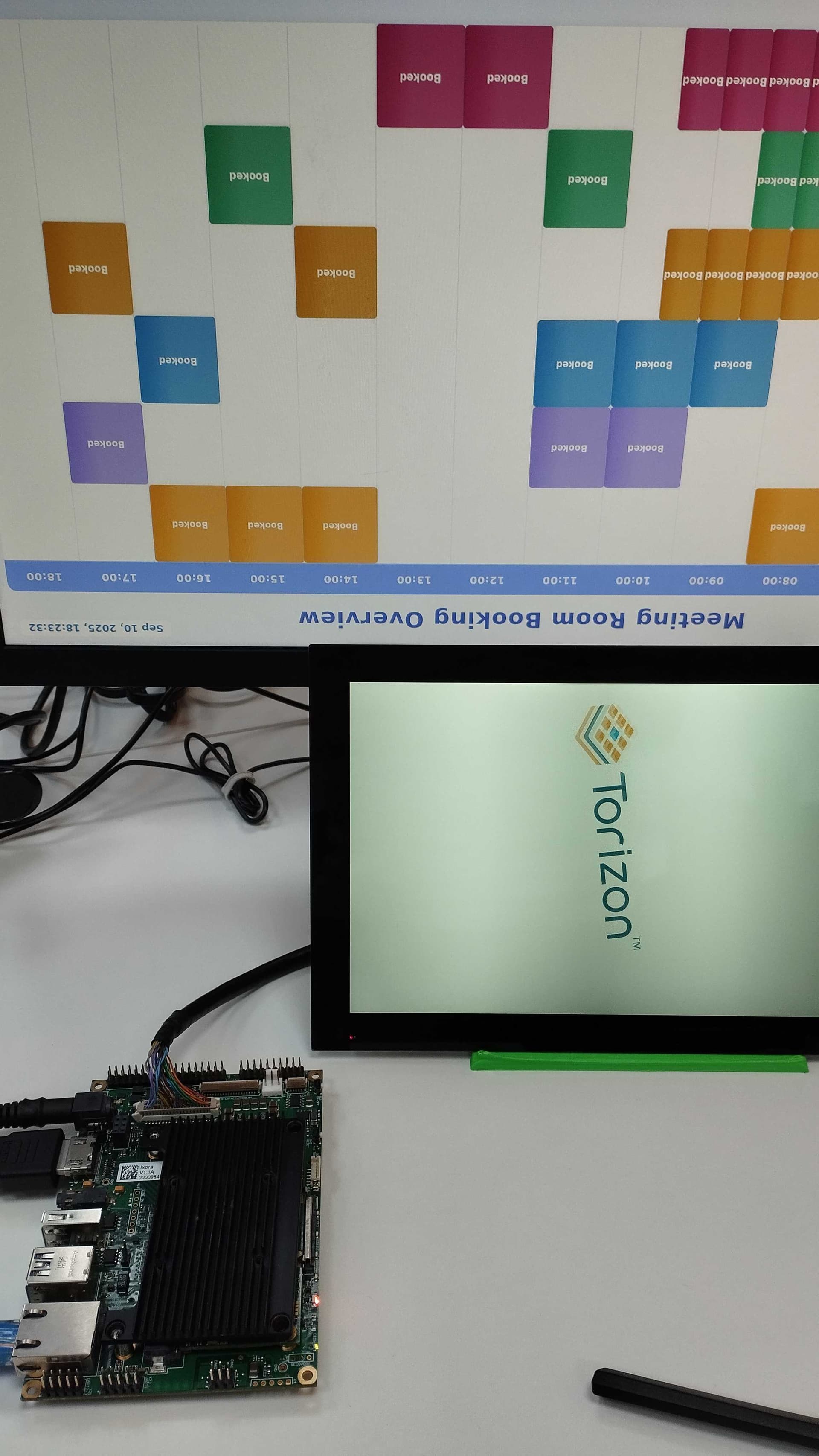
I’m running a QT app on LVDS and a webapp (+chromium) on HDMI
using an Ixora + Apalis iMX8

I’m running on Torizon, but it should be equivalent.


/etc/xdg/weston/weston-dev.ini

[core]
shell=kiosk-shell.so

[output]
name=HDMI-A-1
app-ids=chromium 
transform=rotate-180

[output]
name=LVDS-1
app-ids=cppqmltemplate  

Just a tip, the transform=rotate-180 is an easy way to see that your config took effect.


docker-compose.yml

services:
  app:
    depends_on:
    - weston
    device_cgroup_rules:
    - c 4:0 rmw
    - c 4:7 rmw
    - c 13:* rmw
    - c 199:* rmw
    - c 226:* rmw
    image: allanktoradex/cppqmltemplate-imx8@sha256:122075a08234ef1347556bfe0572e51f9421fd14c812443270f348ea25a1f22b
    platform: linux/arm64
    restart: unless-stopped
    environment:
      - WAYLAND_DISPLAY=wayland-0
    volumes:
    - source: /tmp
      target: /tmp
      type: bind
    - source: /dev
      target: /dev
      type: bind

  weston:
    cap_add:
    - CAP_SYS_TTY_CONFIG
    command:
    - /usr/bin/entry.sh --tty=/dev/tty7 --developer
    device_cgroup_rules:
    - c 4:* rmw
    - c 13:* rmw
    - c 226:* rmw
    - c 199:* rmw
    - c 253:* rmw
    entrypoint:
    - /bin/sh
    - -c
    environment:
    - ACCEPT_FSL_EULA=1
    image: torizon/weston-imx8@sha256:43062b97a1fcd7db991c0ea1c9f90442fe61c384232e09c61970eb58f69e19e1
    network_mode: host
    platform: linux/arm64
    restart: unless-stopped
    volumes:
    - source: /tmp
      target: /tmp
      type: bind
    - source: /dev
      target: /dev
      type: bind
    - source: /run/udev
      target: /run/udev
      type: bind

  dummy-backend:
    image: allanktoradex/booking-rooms-server:latest
    ports:
      - "3000:3000"
    restart: unless-stopped

  room-booking:
    image: allanktoradex/booking-rooms-dashboard:latest
    ports:
      - "5173:5173"
    restart: unless-stopped

  chromium:
    image: torizon/chromium-imx8:4
    container_name: chromium
    network_mode: host
    environment:
      - WAYLAND_DISPLAY=wayland-0
    volumes:
      - /tmp:/tmp
      - /var/run/dbus:/var/run/dbus
      - /dev:/dev
    devices:
      - /dev/dri
      - /dev/video0:/dev/video0
    device_cgroup_rules:
      - "c 199:* rmw"
      - "c 81:* rmw"
      - "c 234:* rmw"
      - "c 253:* rmw"
      - "c 226:* rmw"
      - "c 235:* rmw"
    security_opt:
      - seccomp=unconfined
    shm_size: 256mb
    command: >
      --virtual-keyboard
      http://localhost:5173
    depends_on:
      - weston
      - room-booking
      - dummy-backend

version: '3.9'

Thank you very much, I’ll try it today and give you feedback.

The only problem is that I don’t know if I’ll be able to use kiosk shell with Cranksoftware because I don’t know if it’s possible to assign apps-id to sbengine.

I know you collaborate a lot with Cranksoftware (or at least that it has often been used in some of your demos in the past), have you ever encountered a similar case?