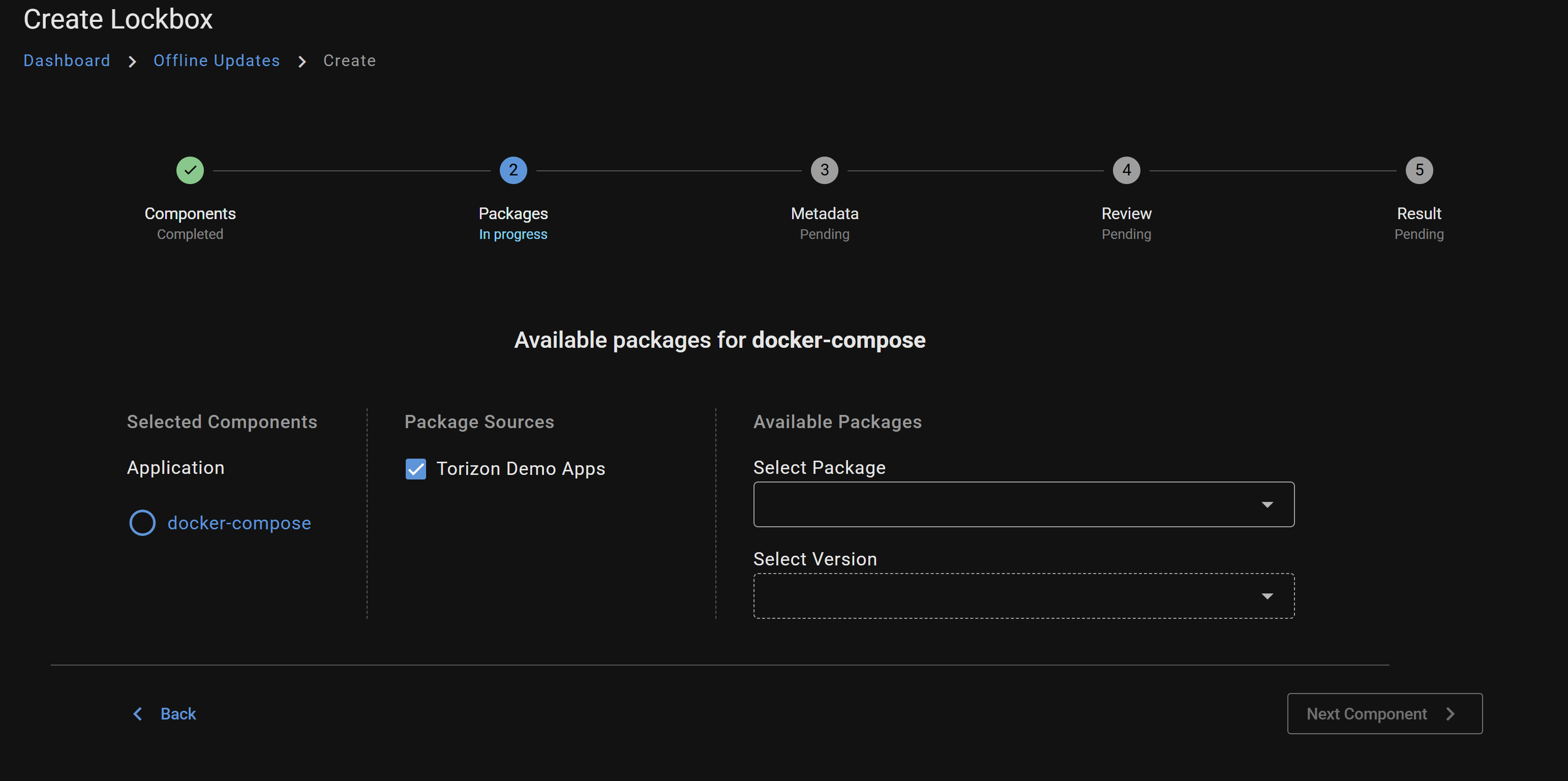
Lockbox creation does not show my docker compose packages

I uploaded some custom docker-compose packages to Torizon cloud. These I can normally use to do online updates on my devices. However when it comes to offline updates via lockbox i do not seem to find these packeges.

The UI when creating lockboxes only shows Torizon provided packages, but not my own:

Is there anything special I have to do in addition to be able to use my own app packages for offline updates?

Hi, I’m the Toradex AI Assistant.

I might make mistakes or occasionally get you wrong. Our support team will step in if needed.


For your docker-compose packages to appear in the Lockbox creation interface, they must be canonicalized(1). This is a critical requirement for offline updates compatibility.

Required Steps

When pushing your docker-compose file to Torizon Cloud, you must use the --canonicalize flag(2):

torizoncore-builder platform push --canonicalize --credentials <credentials file> <path to docker-compose file>

(2)

Additionally, there’s a known issue with the Torizon Cloud interface: the package name must end with .lock.yml or .lock.yaml for it to appear in the Lockbox dropdown(3).

If you specified a custom package name using --package-name, ensure it follows this naming convention(1):

torizoncore-builder platform push --canonicalize --credentials <credentials file> --package-name myapp.lock.yaml <path to docker-compose file>

Important Naming Restrictions

The package name must only use basic ASCII characters, excluding control characters and the set \/:*?"<>|(1). Violating this can cause Lockbox generation to fail later(1).

What Canonicalization Does

Canonicalizing a docker-compose file puts it into a specific YAML format, removes comments, and associates HASH values to Docker images(2). This makes your deployment more secure since images are pulled based on HASHES instead of tags(2).

Try re-pushing your packages with the --canonicalize flag and ensure the package names end with .lock.yml or .lock.yaml. They should then appear in the Lockbox creation interface.

Best regards, Toradex AI Assistant.


Did you like my answer? :+1: :-1:

If I answered your question, please tick the “Solution” checkbox.

For follow-up questions to me, please use @ToradexAI in your post.

Greetings @mbcel,

As the AI has stated, docker-compose packages must be uploaded in a canonicalized format. This is for technical reasons. Our web UI will only display docker-compose packages that are in this canonicalized format, when creating a Lockbox.

Can you try to re-upload your packages in this format and see if you can now add them to a Lockbox.

Best Regards,
Jeremias

Hi Jeremias,

I already do that. But since i do that within a cicd i use docker for that and not torizoncore-builder, which fails to set up in the cicd environment. This is what i do:

- name: Create Canonical Lock File
        run: |
          # 1. Update the local file to use the tags we just pushed (only for our own images)
          sed "/ghcr.io\/something/s/:latest/:${IMAGE_TAG}/g" compose.prod.yml > compose.tagged.yml
          
          # 2. Ask Docker to resolve those tags to immutable hashes (@sha256:...)
          docker compose -f compose.tagged.yml config --resolve-image-digests > "compose.${IMAGE_TAG}.lock.yml"

          # Debug: Show the result
          cat "compose.${IMAGE_TAG}.lock.yml"

The “compose.${IMAGE_TAG}.lock.yml” i then upload manually to torizon cloud as of now. So far this worked for OTA updates perfectly. Is there anything else i need to add/adjust to make it canonicalized enough for the lockbox? I.e. does this need any additional flags or tags?

i then upload manually to torizon cloud as of now

When you say “manually” do you mean you upload your docker-compose file via the web UI?

If so, then that won’t work for this case. For Torizon Cloud to recognize a docker-compose file as “canonicalized” it must be uploaded with certain flags in the backend. When you upload with TorizonCore Builder it will check if the file is canonicalized, if so then it adds these flags during the upload, so that the file is marked as canonicalized in our Cloud.

Uploading via the web UI is just meant to be a simple upload for evaluation purposes, so you can’t add any additional flags.

Best Regards,
Jeremias

1 Like

Alright, got it. Then that probably is the reason.

Please do let us know if that is what resolves your issue here.

Best Regards,
Jeremias