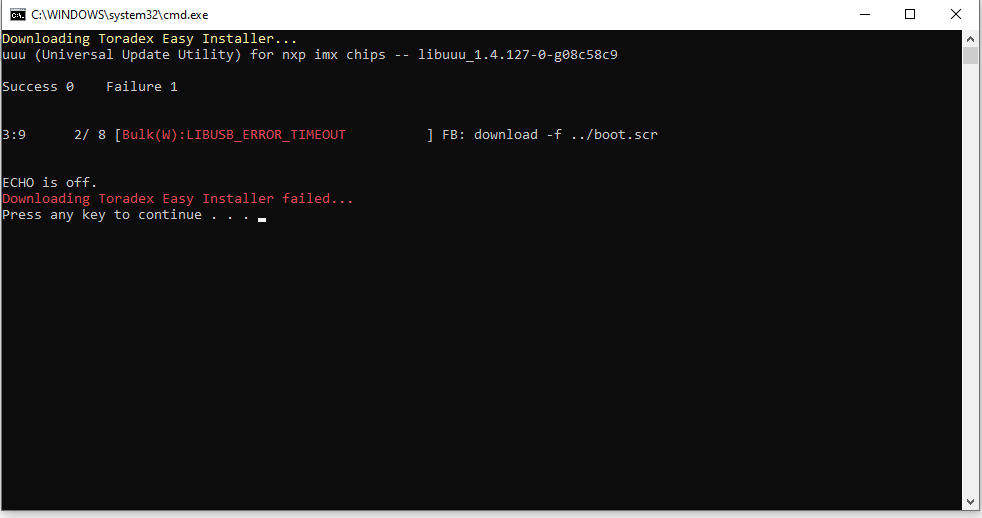
We connected USB→ USB cable from Window 10 PC to the platform and tried to launch the Toradex easy installer application. We followed the usual steps for entering the recovery mode but we are getting the below error. Attaching screen shot for the reference(Error.png for reference).Could you please let us know any driver needs to be installed in windows10 PC to resolve the error or any other steps needs to be followed.
Regards,Deepak
I might make mistakes or occasionally get you wrong. Our support team will step in if needed.
Windows Driver Installation for Toradex Easy Installer
The “Failure to Open USB Device” error you’re encountering is a common issue on Windows systems when the necessary driver for the USB Download Gadget isn’t properly installed (1).
Solution Steps
1. Check Device Manager
First, open Device Manager and look for your module - it should appear as a USB Download Gadget(1).
Important: If the SoM appears as a different type of device, Windows has assigned the wrong driver and you’ll need to uninstall it first before proceeding (1).
2. Install the Correct Driver
Follow these steps to manually install the ADB device driver (1):
Open Device Manager
Right-click on USB Download Gadget and choose “Update Driver”
Select “Browse my computer for drivers” → “Let me pick from a list of available drivers on my computer”
Uncheck “Show compatible hardware” if the checkbox is present, then select “Universal Serial Bus Devices”
Choose “WinUSB Device” → “ADB device” and click “Next”
Select “Yes” to the pop-up window to set the USB as an ADB device
Reboot your SoM and the error should be resolved
3. Alternative Driver Installation
If step 3 above fails and you cannot find the driver in the hardware types list, download the driver from the Android documentation (1):
Download the zip file and extract its contents
Select “Universal Serial Bus Devices” again, but instead of choosing “ADB devices”, click the “Have Disk…” button
Select the android_winusb.inf file
Windows will display the “Android ADB” option - select it and proceed with installation
Reboot your SoM and the error should be fixed
For Modules with Incorrect Drivers
If Windows automatically assigned the wrong driver (device appears as something other than USB Download Gadget) (1):
Open Device Manager
Right-click on your device and choose “Uninstall Device”
Check “Delete the driver software for this device” checkbox and click “Uninstall”
Follow the ADB device driver installation steps described above
Additional Considerations
Avoid USB hubs between the PC and USB OTG port (1)
Use USB 2.0 ports when possible, as they tend to be more reliable for recovery operations
For AM62 Modules Specifically
If you’re using a Verdin AM62, you may also encounter DFU-related issues. The AM62 uses DFU mode and may require the WinUSB driver to be manually assigned to the AM62x DFU device that appears with an exclamation mark in Device Manager (1).
The steps are similar:
Right-click on AM62x DFU and choose “Update driver”
Select “Browse my computer for drivers” → “Let me pick from a list of available drivers”
Choose “WinUSB Device” → “WinUSB Device” and click “Next”
This may need to be done twice - once for the DFU server in Boot-ROM and once for U-Boot
Alternatively, you can use Zadig to install the WinUSB driver with a user-friendly interface (1).
Best regards,
Toradex AI Assistant.
Did you like my answer?
If I answered your question, please tick the “Solution” checkbox.
For follow-up questions to me, please use @ToradexAI in your post.
can you add more details of what are you seeing now? or there were no changes ?
on the section I pointed out there are 3 cases, this usually helps customer fixing the issue. I would be surprise if this does not address the issue.
just to double check, where you hable to install WinUSB driver using Zadig?


 Important: If the SoM appears as a different type of device, Windows has assigned the wrong driver and you’ll need to uninstall it first before proceeding
